 Shepherd
Reviewing pull requests
Read a diff, comment on lines, submit a verdict, and what happens when you are offline or the pull request moves on.
Open a pull request from the inbox with ⏎ or a double-click. Press esc to go back.
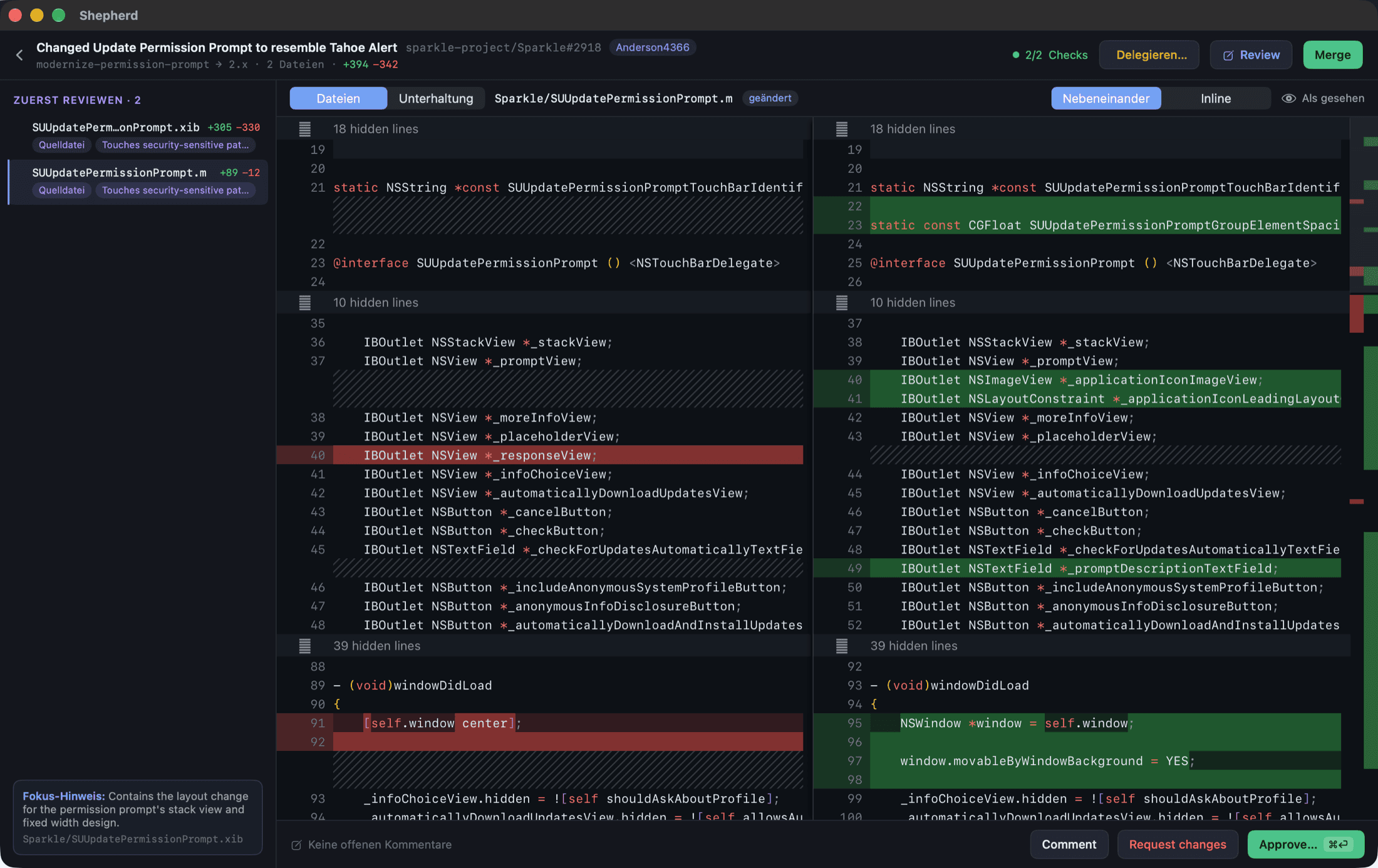
The review screen has two tabs. Press t to switch between them.
- Files shows the changed files and the diff.
- Conversation shows the whole conversation, as on GitHub: the description, every comment and review, the review threads, commits, events and checks.
An agent's pull request opens on Conversation when its description claims something, such as tests added or nothing breaking. Everything else opens on Files. Turn this off in Settings → Appearance with Open agent pull requests on Conversation.
Read the diff
The file list is ordered by review priority, riskiest first. It groups files into Review first, Standard, Skim and generated files, so lockfiles and generated code do not get in your way.
↑and↓move between files.vmarks the file as viewed, or unmarks it.amarks the file as viewed and jumps to the next one that is not.- The Layout control switches between Side by side and Inline.
Once every file is marked, the review bar shows All files viewed.
Pick a diff renderer
Settings → Appearance → Diff renderer has three choices:
- Automatic uses the line list while VoiceOver is running, and the rich viewer otherwise.
- Rich viewer is the full diff editor.
- Line list is a native list with one row per diff line. Walk it with
j,kor the arrow keys.
Comment on lines
In the rich viewer, hover a line number and click the + that appears. On the deleted side of a diff, use the left pane. In the line list, double-click a row.
You can also use the keyboard:
- Press
cto move the keyboard into the diff. - Walk the lines with the arrow keys.
- Press
cagain to open the comment box on the current line.
In the side-by-side diff, [ and ] move between the original and the modified pane. That is how you comment on a deleted line.
To comment on several lines, drag across the line numbers, or click one + and ⇧-click another. Then the comment covers the range, as on GitHub. Selecting lines and pressing c does the same. A range has to stay inside one hunk and on one side.
Open a line in your editor
⌘-click any line in the diff to open the file in your editor at that line. In the line list, ⌘-click a row. This needs a linked local checkout, see Local checkouts. A line on the deleted side opens where that spot is in the new file. Your editor shows the file as it is in your checkout. If another branch is checked out there, the line can be off.
Type your comment, then choose as on GitHub:
- Comment posts it right away, on its own.
- Start a review saves it to your pending review. Nothing is sent until you submit.
Once a review is pending, the button reads Add review comment and every new comment joins the review. The review bar counts your pending comments. Drafts survive a restart.
To add a screenshot, copy it (⌃⇧⌘4 puts one on the clipboard) and press ⌘V in the comment field, as on GitHub. A copied image file works too. Shepherd uploads it to GitHub and inserts the image link. Comments can't be sent while an image is still uploading. Images can be up to 10 MB. This uses the same upload as github.com, which GitHub does not document. If the upload fails, attach the image on GitHub instead.
On the new side of the diff, the suggestion button (±) inserts the commented lines as a suggestion block. Edit them into what they should be, and the author can apply your change on GitHub with one click.
Threads that already exist show on their lines. You can reply, and Resolve or Unresolve a thread. A reply or resolve made offline is queued like a review.
Saved replies and templates
The insert menu next to a comment field lists your saved replies. Pick one to paste it. On a thread, replies that fit the conversation are listed first under Suggested. This uses on-device matching only.
Add and edit saved replies in Settings → Replies. The same page has Review templates. A template matches a repository like schnaq/review, or a whole owner like schnaq/*, and pre-fills the summary of a new review. It never overwrites a review you have started.
Long threads
A thread with six or more comments gets a Summarise button. It writes a short digest on your Mac, marked Agreed, Open or Blocked. It only summarises. It never replies or resolves. It needs Apple Intelligence.
Submit a review
Use the buttons in the toolbar, or the keys:
| Action | Button | Keys |
|---|---|---|
| Approve | ✓ Approve | r a |
| Request changes | ✕ | r x |
| Comment | in the submit sheet | r c |
| Open the submit sheet | Review | ⌘⏎ |
Approve sends at once, with your pending inline comments. ✕ opens the submit sheet, because a change request needs a summary.
The ⋯ button next to Review holds the rarer actions: Comment… on the conversation, Mark ready for review on a draft, Update branch when the branch is behind, Open on GitHub, Copy branch name and Close pull request…. The inbox panel has the same menu.
The submit sheet has a Summary, a Verdict and your pending inline comments. Click Submit to send.
- Only an approval may go without a summary. GitHub rejects the other two.
- GitHub does not accept an approval or change request on your own pull request. The two buttons are then disabled; comment from the submit sheet instead.
- Once the pull request is merged or closed, the verdict buttons are disabled.
If GitHub reports the pull request as updated while you are reading, a strip above the diff says Updated on GitHub — n new commits. Press Reload or u to show them. Your file, cursor and comment text stay where they are until you do. New commits are never applied silently, because your comments are anchored to the commit you were reading.
Offline and the outbox
Submitting does not talk to GitHub directly. The review goes into a local queue, the outbox, and is sent as soon as possible. It survives a crash and a lost connection. The queue also carries comments, replies, thread resolves, reactions, edits, deletes and merges.
A toast tells you which case you are in:
- Approved … means GitHub has the review.
- Approval queued for … means it is still on your Mac. It has not approved anything yet.
- Review parked — … got new commits since you wrote it. means the pull request moved on and the review was parked.
Writes that will not go out by themselves are counted in the toolbar as n not sent (red, GitHub refused them) and n parked (amber, the pull request moved on). Click the count to see each one with Show, Retry or Send anyway, and Discard. Settings → Sync lists the same rows. The review header and the detail panel offer the same actions for the pull request you are on.
When a review is parked
A review is pinned to the head commit you wrote it on. If the pull request gets new commits before the review reaches GitHub, Shepherd parks it, so you decide whether it still applies. It shows Your review was parked with these buttons:
- Send anyway sends the review on the commit you wrote it on. GitHub keeps your inline comments there, marked outdated where the lines have changed.
- Re-review opens the pull request so you can check your draft against the new commits. Submitting a new review replaces the parked one.
- Discard deletes the parked review and its draft.
- Later dismisses the alert.
Until you decide, the pull request shows Parked, the toolbar counts it under parked, and the same buttons are in the detail panel and the review header. You also get a Review parked notification. If several writes were parked in one run, the alerts come one after another. A parked merge works the same way, without Send anyway: look at the new commits and merge again, or discard it.
A quick verdict with no inline comments is pinned to the head you saw when you clicked it. Inline comments keep the commit you wrote them on.
The conversation
The Conversation tab reads like the pull request's page on GitHub. From top to bottom:
- The description, as the first post.
- Everything that happened, oldest first: comments, reviews with their text, commits, and events such as labels, review requests, force-pushes, title changes, merges and closes.
- The checks.
- A comment field.
A review shows the threads it started, each with its file and line. Show in diff opens that line on the Files tab. Resolved and outdated threads start collapsed. Reply, Resolve and Delegate… work as they do in the diff.
Type in the field at the bottom and click Post comment, or press ⌘⏎. Comment and close posts your comment and closes the pull request. With an empty field, the button reads Close without a comment. Saved replies and ⌘V screenshots work here too. A comment you write offline waits in the outbox, like a review.
To answer one post, open its ⋯ menu and pick Quote reply. The post goes into the comment field as a quote. The same menu has Copy link and Open on GitHub.
To change one of your own posts, open its ⋯ menu and pick Edit. The post turns into an editor. Click Update comment or press ⌘⏎. Delete… removes one of your comments after you confirm it. You can edit comments, thread comments, the text of a submitted review and the description. You can delete comments and thread comments, but not a review or the description. The menu offers only what GitHub allows you. An edit or a delete shows at once, also offline, and waits in the outbox like a comment.
Under each post, click a reaction to add yours or take it back. The smiley (Add a reaction) offers all eight. Your click shows at once, also offline, and waits in the outbox like a comment. In a locked conversation, reactions are shown but not offered.
A comment that somebody hid on GitHub starts collapsed. Click Show to read it.
Posts show tables, and the screenshots that were uploaded to GitHub where the author put them. Shepherd downloads a screenshot from GitHub when its post shows. Click a screenshot to open it on GitHub. An image from another site shows as its text.
New comments arrive with the next sync, the same way new checks do. A very long conversation shows its newest 500 entries, with a link to the rest on GitHub.
Since your review
When an agent pushes a fix round, the review opens on Since your review instead of the whole pull request. You see only the files and hunks that differ from the head you reviewed. All files is one click away. The control only appears once there is a round to compare against, so a first review opens on all files.
Under it, Your findings lists the comments you made in the earlier round:
- Addressed: the lines your comment was on changed. This does not say the fix is right. The thread stays open until you resolve it.
- Unchanged: neither the lines nor the thread changed.
- Moved: the file was renamed or the lines shifted.
- Replied: somebody answered in the thread.
Click a finding to jump to the file and line. On the inbox row, a chip such as 3 rounds · 2 findings unchanged tells you before you open it.
Shepherd keeps the diff you reviewed once your review reaches GitHub. The comparison runs on your Mac, so it survives a force-push and works offline. A review you submitted on github.com counts too, as long as the pull request is still on that commit.
What it says, and what Shepherd found
On an agent's pull request, a card above the description lists each claim the description makes next to the evidence Shepherd found: tests added, only one module touched, no breaking changes, fixes an issue. A failed line can be turned into a comment for your review summary with Turn into a comment. Nothing is submitted for you, and there is no score.
What this pull request closes
If the description says closes #123, a Closes section above the description lists each issue with its title and whether it is still open. Press ⇧⌘I or click a row to open the first issue on GitHub. A pull request that closes nothing has no such section.
Focus review session
Press ⇧⌘⏎ or r f, or click Session in the inbox header, to work through every pull request waiting for your review, one after another, on this same screen. The queue is frozen at the start.
- A bar shows your place, for example 3 of 12.
dcounts the pull request as reviewed and moves on. The button reads Done & next.nleaves it for later and moves on.escends the session after a confirmation.- Approving, requesting changes or merging moves on by itself.
Pull requests that get merged or closed meanwhile are skipped with a note. At the end, a summary shows what you reviewed, skipped and lost to merges. A session is not saved.
Bulk triage
For a pile of agent pull requests you have already looked at, tick them in the inbox and approve or merge them behind one confirmation. See The inbox. To merge, see Merging.
Translate and Writing Tools
Text fields for review text offer Apple's Writing Tools for proofreading and rewriting, on your Mac where supported. Descriptions and comments in a language you do not read get a Translate button. The translation appears in a block below the original, so what you approve is what was written. Hide translation collapses it. Nothing is sent anywhere.
AI help
If you set up AI, a sparkle button drafts review text, and a Why? button explains a red check. Drafts are text in a field. You still click submit. See AI.