 Shepherd
The inbox
What lands in your inbox, how to group, filter and select pull requests, and the menu-bar list, morning digest and notifications around it.
The inbox is one list of open pull requests across all your repositories. Shepherd fills it with a few GitHub searches every couple of minutes and keeps the result in a local database. Press ⌘R to sync right now.
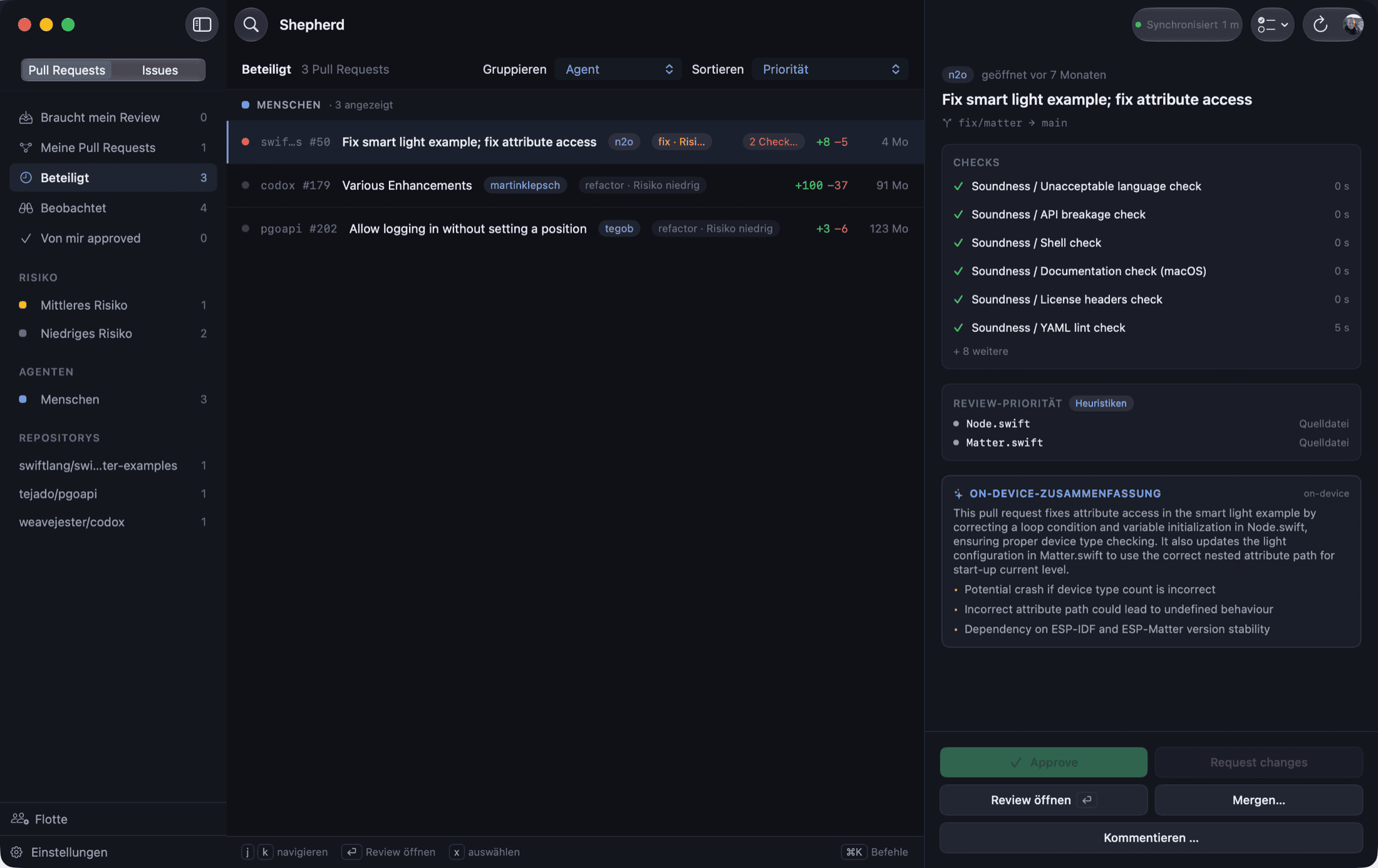
What shows up
The left rail has these views:
| View | What is in it |
|---|---|
| Needs my review | Pull requests where your review was explicitly requested and that do not already carry an approval. |
| My pull requests | Pull requests you opened. |
| Involved | Everything Shepherd syncs for you: review requested, assigned to you, opened by you, mentioning you, or anything else GitHub counts as involving you. |
| Watched | Open pull requests in watched repositories that nobody has involved you in. |
| Approved by me | An approximation. GitHub cannot search for "I approved this", so this shows pull requests you were asked to review that now carry an approval. |
A pull request you are also involved in stays under Involved, even in a watched repository. Only rows with no other connection to you land in Watched.
Closed and merged pull requests leave the inbox. Draft pull requests stay in it and carry a Draft chip.
Next to the pull requests there is a second section for issues. Use the picker at the top of the rail to switch between Pull requests and Issues.
Hide a pull request
Right-click a row and choose Hide this pull request. A toast offers Undo. A new review request brings a hidden pull request back. The full list is in Settings → Sync, under Hidden pull requests.
Watched repositories
Watching a repository puts every open pull request in it into the inbox, even the ones nobody asked you about. You can watch up to 10 repositories. Each one is one more search on every sweep.
To add one:
- Click the
+next to REPOSITORIES in the rail, or press⇧⌘A. - Choose Watch a repository….
- Type
owner/repositoryor paste a GitHub URL, then click Watch.
You can also manage the list in Settings → Sync under Watched repositories. Watched repositories are listed at the top of the REPOSITORIES section, with a binoculars icon, even when the current view has nothing from them.
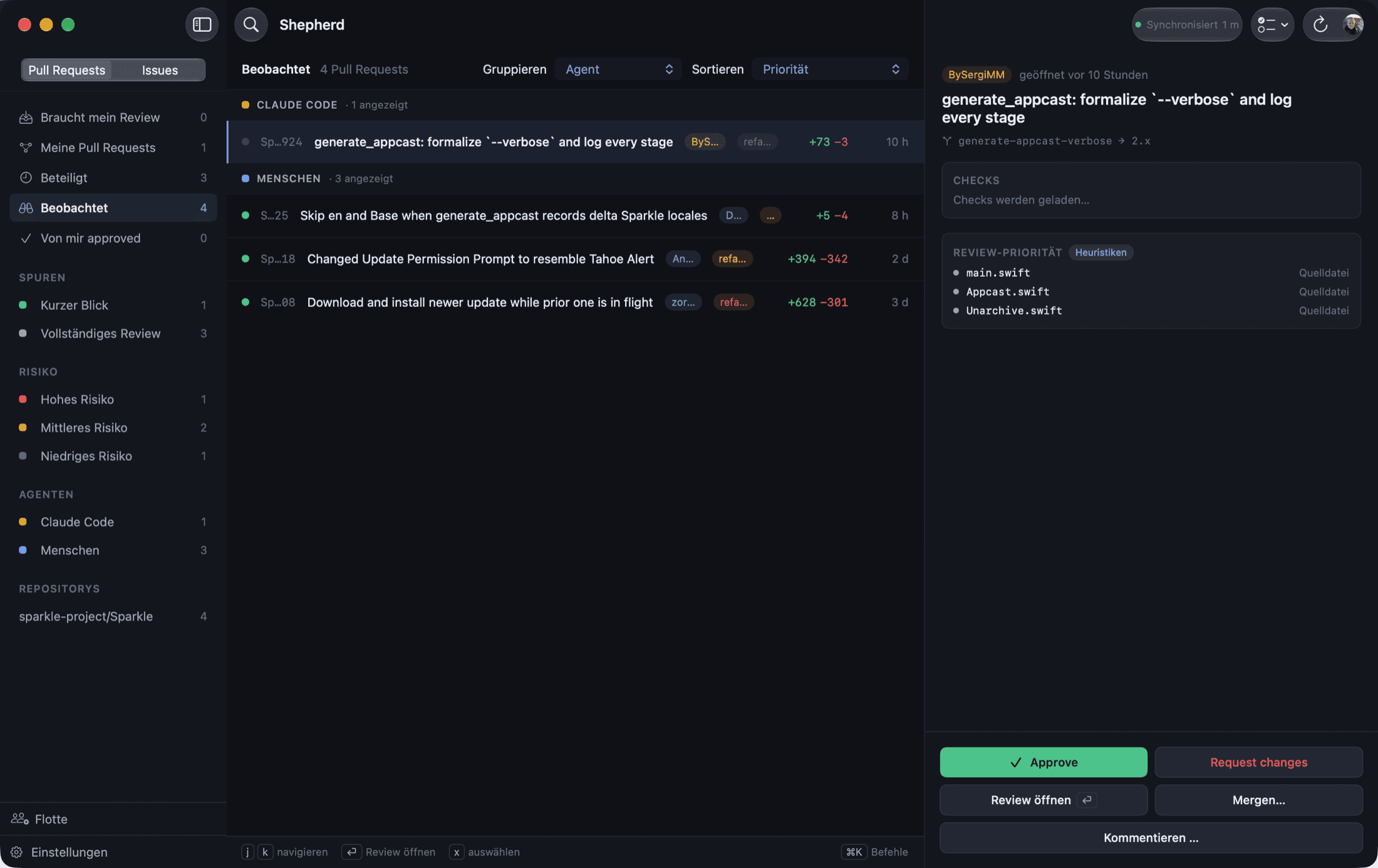
A warning triangle instead of a count means Shepherd cannot see the repository. GitHub's search returns nothing for a repository your sign-in has no access to, so without the warning you would only see an empty list. Hover the row to see why. If you signed in with device flow, right-click it and choose Install Shepherd on … (with the owner's name). After the app is installed, choose Check access again. If you signed in with a token, give the token access to the repository's owner. See GitHub token.
Add a local clone
Choose Add a local repository… from the same + menu, or from ⌘K. Pick the folder of a clone. Shepherd reads owner/repo from its origin remote and shows one confirmation with two boxes:
- Link this folder as the local checkout
- Watch the repository
Both are ticked by default. Untick either one.
When you click Add, Shepherd first checks that your sign-in can read the repository. If it cannot, the dialog stays open, says so, and offers the install link.
A watched repository with a linked clone shows a small laptop icon. Right-click it to see Start an agent…. Without a clone, the menu offers Link a local checkout… instead.
Only github.com is supported. A clone whose origin points at GitHub Enterprise is refused. An SSH alias from ~/.ssh/config with "github" in its name, such as git@github-work:owner/repo.git or git@github.com-work:owner/repo.git, counts as github.com.
Group, sort and filter
Group
The Group menu above the list has three options:
| Option | Shortcut | Sections |
|---|---|---|
| Agent | g a | One per detected coding agent, then bots, then humans. |
| Repository | g r | One per repository, by name. |
| Review state | g s | Review required, Changes requested, Approved, No review decision. |
Shepherd detects agents such as Claude Code, GitHub Copilot, OpenAI Codex, Devin and Cursor from the author's login, the branch prefix or commit trailers. You can adjust the registry in Settings → Agents.
Sort
The Sort menu has Priority, Recently updated and Oldest first. The order stays stable between syncs that return the same data. The row you have selected stays where it is until you move on.
Filter with the rail
Below the smart views, the rail has facets. Click one to filter the list. Click it again to clear it, or use the x next to the filter chip in the list header.
- LANES with Short look and Full review.
- RISK with Low risk, Medium risk and High risk.
- AGENTS, one row per agent, plus Bots and Humans.
- REPOSITORIES.
A facet that would filter to nothing does not appear.
Search with ⌘K
⌘K opens the command palette and also searches your pull requests and issues by meaning. Type two or three words, or a reference such as owner/repo#128 or #128. Each result says why it matched.
You can add filters to a search: risk:high and kind:dependency. Press ⏎ to open a result.
Search runs on your Mac only. It never uses an AI endpoint, even when you configured one. Settings → Intelligence shows the index and has a Rebuild index button and a switch.
Triage tags
Every row can carry a small tag such as fix · risk high. Click it to see the one-sentence reason behind it.
- The kind is one of feature, fix, chore, dependency, docs or refactor.
- The risk is risk low, risk medium or risk high.
- Apple's on-device model writes the verdict on your Mac. Nothing is sent anywhere.
- Without Apple Intelligence, the tag falls back to risk hints computed from the changed files, for example
risk highalone.
The tag is a label and a filter. It does not change the order of the list, and no rule, bulk action or automation reads it.
Turn it off in Settings → Intelligence with Classify pull requests. That deletes the stored verdicts.
Two lanes
A pull request is a Short look only when all of these are true:
- CI is green.
- The diff is small. The defaults are 5 files and 120 changed lines.
- Nothing sensitive is in it: no CI workflow, auth or secret path, schema migration or deleted test.
Everything else is a Full review. A pull request whose diff Shepherd has not fetched yet is a full review. Change the two limits in Settings → Automation.
Agent track record
Shepherd can show how each agent's pull requests fared in a repository: merges, reverts and how often CI was green on the first push. It only tints the agent chip and breaks ties in the sort order. It never moves a pull request between lanes.
The numbers come from the last 90 days of closed pull requests, at most 500 per repository. Load them once with Load track record in Settings → Automation. The inbox also offers it once, in a notice above the list. Clear history empties it. The history stays on this Mac.
The fleet
The Fleet row at the bottom of the rail lists every agent Shepherd has seen. For each one you get how many of its pull requests are open, how many wait on you, and what happened to those it closed in the last 90 days. Click an agent for a page with the same counts per repository.
The fleet has no score or ranking. It needs the track record above for the closed-side numbers. Until you load it, those show a dash.
Select several pull requests
Every row has a checkbox at the far left. It is faint until you point at the row or tick something.
- Click the box to tick one row.
- Press
xto tick the row under the cursor. ⌘-click a row to tick it.⇧-click a row to tick the range from the cursor to that row.- Press
escor click the x next to the chip to clear the selection.
While anything is ticked, the header shows an accent chip with the count, for example 3 selected.
Choose Select all green agent pull requests from the checklist menu in the toolbar, from the right-click menu or from ⌘K. It ticks every agent-authored pull request in the current view that is not a draft, has green CI, is mergeable and has no change request. Pull requests written by people are never swept in.
Bulk actions
The checklist menu in the toolbar reads Bulk triage and turns into Triage n selected once rows are ticked. It offers:
- Approve selected…
- Approve & merge selected…
- Merge selected…
- Merge one after another…, for a series in one repository. See Merging.
The same actions are in ⌘K and in the right-click menu on a ticked row. Each confirmation dialog lists what will be queued and what will be skipped, with the reason, for example red CI, conflicts, drafts, changes requested or your own pull request. Every pull request is queued on its own, with the same offline and retry handling as a single review. See Reviewing and Merging.
Menu-bar quick inbox
The menu-bar item shows how many pull requests wait for your review. Click it for a short list of up to eight, most urgent first. Each row has the repository and number, the title, the author and the CI state. Click a row to open the review in the main window. Sync now and Open Shepherd are at the bottom.
It reads the same local data as the inbox. Turn it off in Settings → Appearance with Show in menu bar.
Morning digest
Off by default. Turn it on in Settings → Sync with Send me a morning digest. Pick the time under At, and tick Weekdays only if you like. The default time is 9:00.
Once a day, you get one notification that opens the inbox, plus a dismissible card above the list. It reports what came in since the last digest:
- new review requests
- issues assigned to you
- green agent pull requests that only need an approval or a merge
- issues an agent pull request closed
- your own pull requests with red CI or a change request
- queued writes that are parked, and writes Shepherd gave up on
Each line has a Show button that takes you there. The digest is built from local data only. If your Mac was asleep at the set time, it arrives when the Mac wakes, if that is still the same day. A quiet night produces nothing.
Notifications
Settings → Sync has three switches under Notifications:
- A new review is requested from me
- Checks fail on a pull request I opened
- A queued write was parked or not sent
macOS asks for permission the first time Shepherd posts one. Notifications also show while Shepherd is in front, and clicking one about a pull request or issue opens it. Automatic rules and webhooks have their own notifications. See Automation.